Schedule Pipelines
Datamap pipelines ensure data freshness in downstream tables by propagating changes from upstream data sources and dependent objects. They can also be used to execute one-time ETL data migration jobs when needed. Pipelines can be configured individually for each instantiated object.
Configure Pipeline for Instantiation
Once users have an instantiated versioned table from their Datamap, expand the Pipeline section:
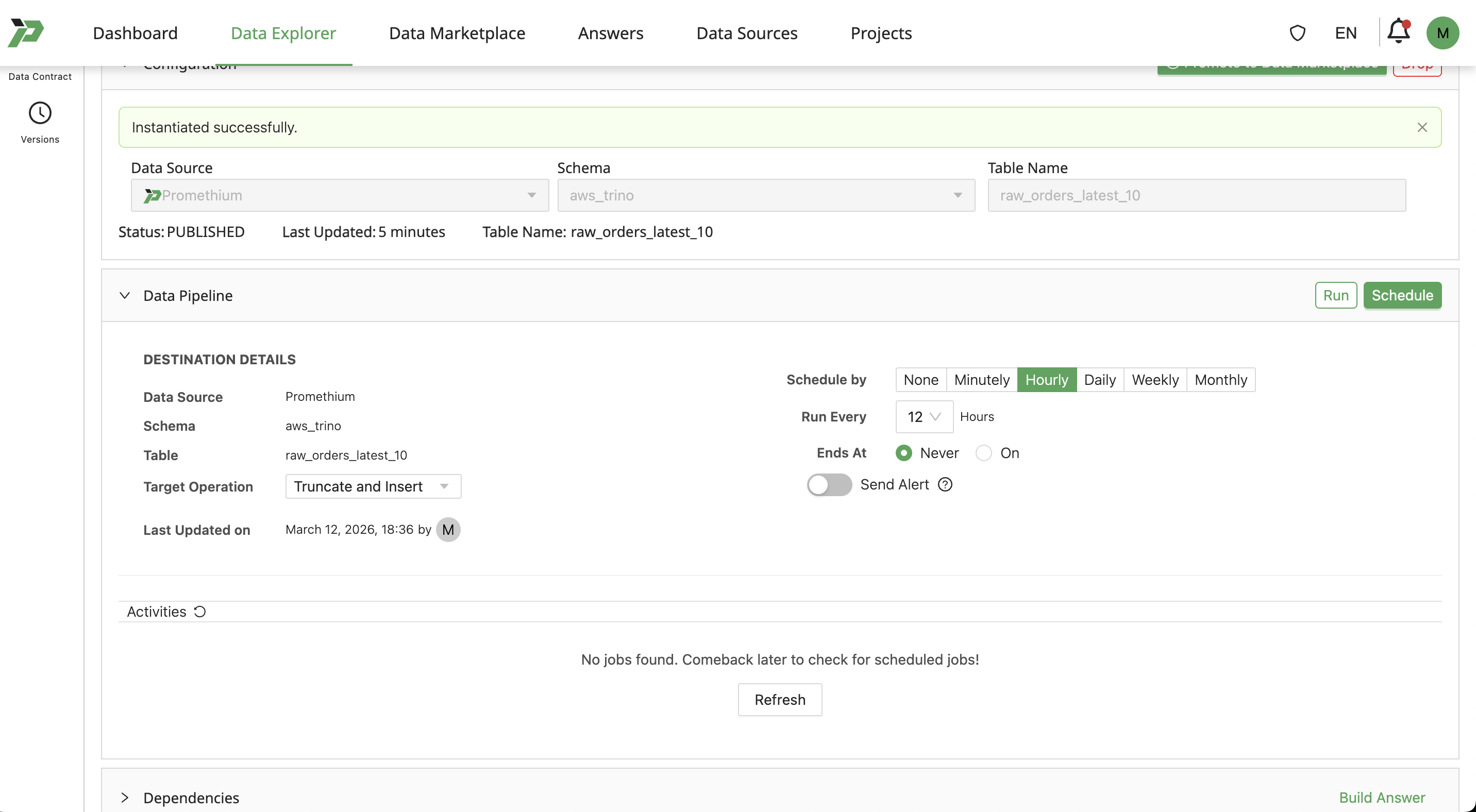
Users can Schedule by minutes, hours, days, weeks, or months, depending on required freshness for the data. More frequent updates means data consumers will have more up-to-date rows.
Set Ends at as Never for the pipeline to update the data indefinitely.
Set Target Operation as:
- Truncate and Insert to replace existing rows with fresh rows.
- Insert to append refreshed data to existing rows.
Finally, click Schedule to save the pipeline to the table.
Alternatively, to run a one-off job e.g. for ETL or copying data, users can click Run to run a single job and monitor the state/success of the job below the pipeline configuration.
Remove Pipeline Job
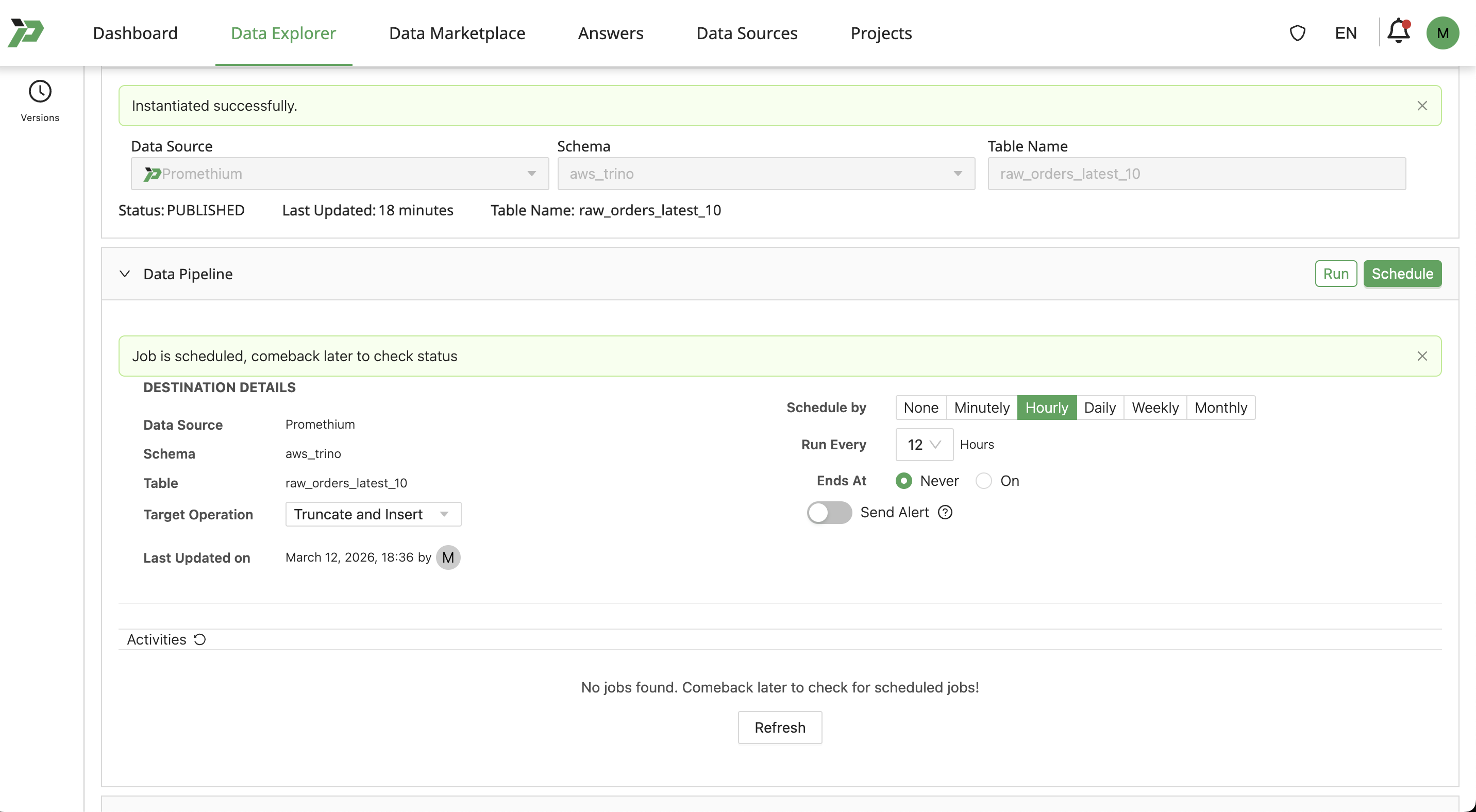
Set Schedule by to None, and click Schedule. This will remove the pipeline entirely.
View and Manage Pipeline Jobs
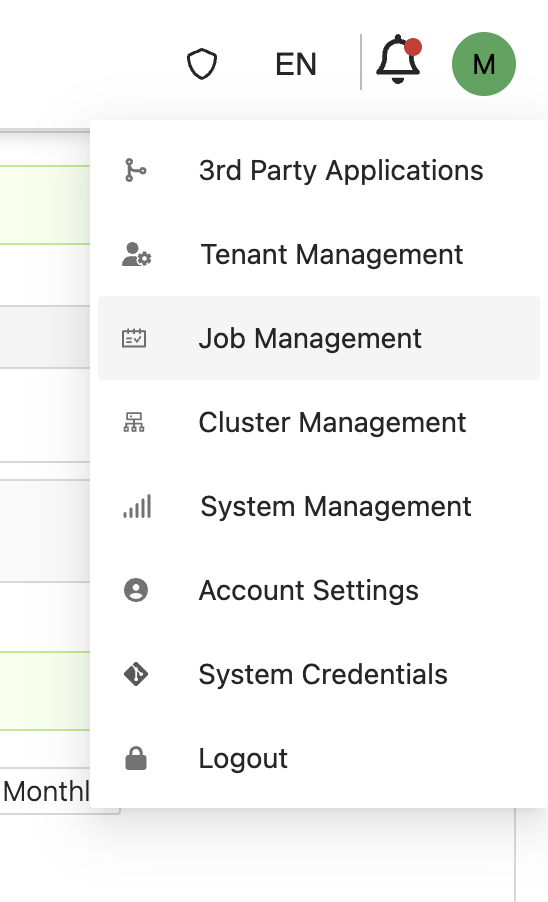
Click on your profile icon and select Job Management.
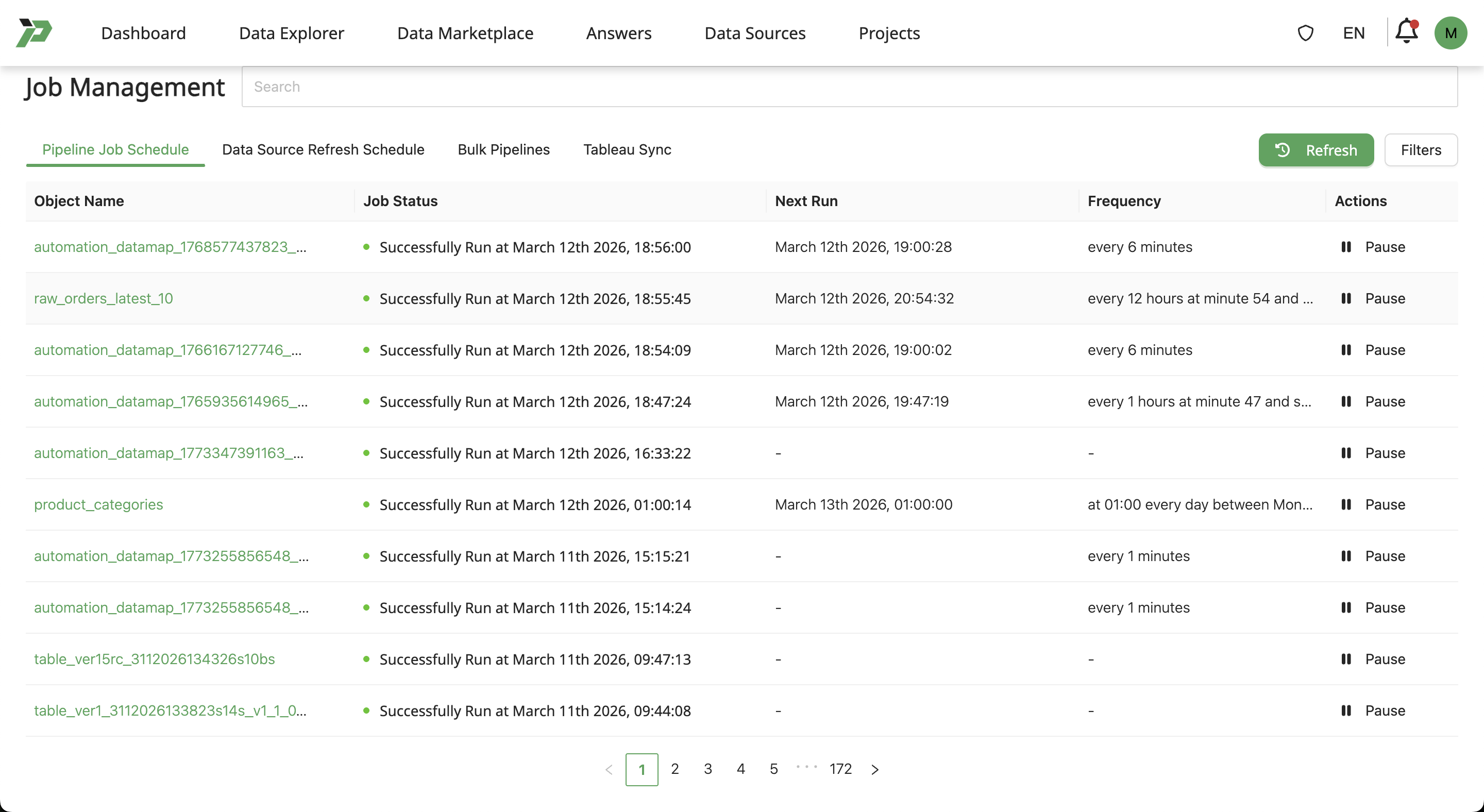
On the Job Management page, users can see all the scheduled pipelines. Click the pause icon to pause a recurring pipeline job, and resume it again by clicking the play icon on a paused pipeline.