Data Authorization
Promethium uses two independent layers to control data access. Both must be satisfied before a user can perform any data operation.
- Permission set keys — grant access to modules and the ability to perform specific actions (e.g., opening the Data Explorer, creating a datamap). These are role-based and apply globally.
- Data Authorization access levels — grant access to specific data objects: individual tables, datamaps, or groups of objects organized into domains. These are object-scoped and apply regardless of how the user reaches the data.
A user who has the right permission set key but no Data Authorization access to an object cannot see or query that object. Conversely, a user who has a Data Authorization access level but lacks the module permission cannot reach the object through the UI.
Example:
User: Sarah
Role: Data Engineer (includes access_datamap_functionality + create_datamap)
Domain: Marketing (Editor access level)

Result: Sarah can open the Datamap editor and create new datamaps.
        She can view and edit any datamap in the Marketing domain.
        She cannot see datamaps in other domains.
Access Levels
Every Data Authorization grant assigns one of three access levels. The level determines what the user can do with the object.
| Level | What the user can do | What the user cannot do |
|---|---|---|
| Viewer | View metadata, query data, export results | Modify the object, grant access to others |
| Editor | Everything a Viewer can do, plus edit the object, publish changes, grant access, change domain assignment | Delete the object |
| Owner | Everything an Editor can do, plus delete the object | — |
When a user creates an object, they automatically become its Owner. Ownership cannot be revoked — it can only be transferred to another user.
How Access is Resolved
A user may have access to the same object through multiple paths. Promethium evaluates all paths and grants the highest access level found.
Resolution order:
- Object ownership — Creators are automatically Owner. This cannot be revoked, only transferred.
- Direct object grant — An access level explicitly assigned to the user on this specific object.
- Domain membership (user) — The object belongs to a domain, and the user has been granted an access level on that domain.
- Domain membership (role) — The object belongs to a domain, and the user's role has been granted an access level on that domain.
- No access — If none of the above apply, the user cannot see or query the object.
Example:
User: Alex
- Direct grant on the table: Viewer
- Domain the table belongs to (via Alex's user): Editor
- Domain the table belongs to (via Alex's role): Viewer

Result: Editor — the highest level across all paths wins.
What Each Access Level Enables
Data Sources and Schemas
A data source is a registered database catalog. A schema is a namespace within it (e.g., sales, finance). Users do not need a permission key to browse a data source or schema — visibility follows automatically from table access.
| Operation | What is required |
|---|---|
| Browsing a data source and its schemas in the Data Explorer | Data Authorization access to at least one table within it |
| Registering or managing a data source | manage_datasource permission |
Running CREATE SCHEMA | manage_datasource permission |
| Data source indexing during onboarding | manage_datasource permission (granted automatically to the onboarding user) |
Tables, Views, and Datamaps
Tables include registered database tables, views, and instantiated datamap objects.
Reading data
| Operation | What is required |
|---|---|
| Viewing a table or datamap in the Data Explorer | Viewer, Editor, or Owner access (via domain or direct grant) |
Querying a table with SELECT | Viewer, Editor, or Owner access |
| Querying a table not yet indexed | create_datamap permission (temporary escalation until indexing completes) |
Writing and modifying data
| Operation | What is required |
|---|---|
INSERT INTO | Editor or Owner access on the target table |
DELETE FROM | Editor or Owner access on the target table |
CREATE VIEW or CREATE TABLE | manage_datasource permission, or create_datamap permission |
CREATE MATERIALIZED VIEW | Same as CREATE VIEW |
DROP VIEW | Owner access on the target view |
DROP TABLE | Owner access on the target table |
When a user creates a table or view, they are automatically granted Owner access on the new object immediately.
Column access
By default, a user with any access level (Viewer, Editor, or Owner) can see and query all columns in an object. Column restrictions must be explicitly configured.
| Restriction type | What the user sees |
|---|---|
| Hidden column | The column does not appear in query results and cannot be referenced in SQL. Selecting it returns an access error. |
| Masked column | The column appears in query results but its value is replaced by a masked value. The column can be selected and referenced normally. |
Legacy permission fallback
If a user's permission set still contains deprecated keys such as view_datamap, edit_datamap, view_table, or edit_table, those keys continue to act as fallback data access grants for tables not yet registered in the catalog. This means users may have broader data access than intended while these keys remain.
When removing deprecated permissions, verify that users have appropriate Data Authorization access levels in place first, or they may lose access to tables they could previously query.
Row-Level Security
Row-level security (RLS) restricts which rows a user can see when querying a table or datamap. The filter is expressed as a SQL WHERE clause, applied automatically at query time — it is invisible to the user and cannot be bypassed from SQL.
Key behaviors:
- Only rows matching the filter condition are returned.
- If a user has multiple filters (e.g., through several roles), they see the union of all rows that match any filter.
- Object owners bypass row filters and always see all rows.
- Filters are pushed down to the data source when possible for performance.
Example filters
-- Restrict to a specific region
region = 'WEST'

-- Restrict to recent transactions
transaction_date >= DATE_SUB(CURRENT_DATE, 90)

-- Restrict by customer segment and region
customer_segment = 'ENTERPRISE' AND region IN ('EAST', 'CENTRAL')
Configuring row filters
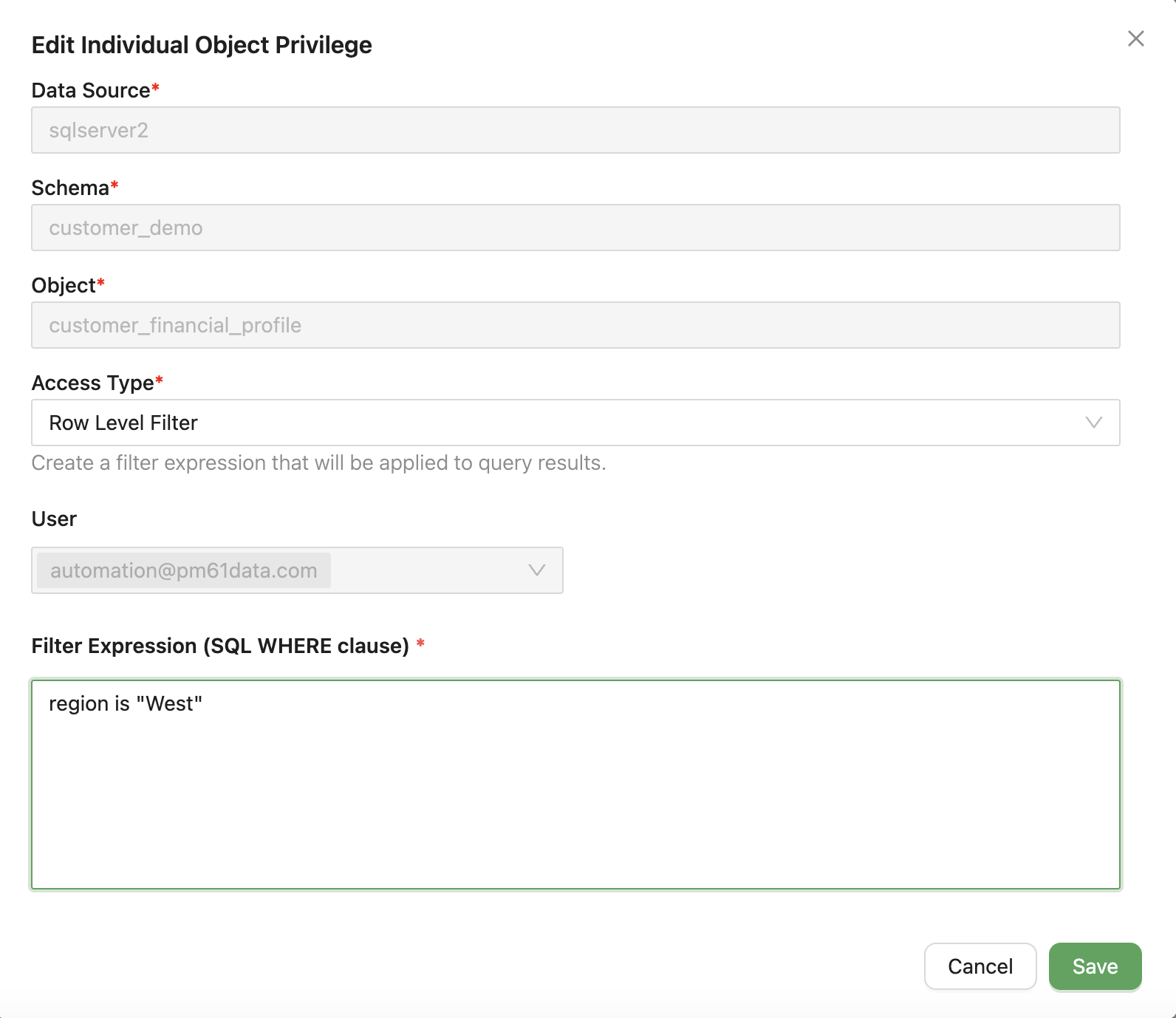
- Navigate to Data Authorization (shield icon in the header)
- Select the Users or Roles tab
- Choose the user or role to configure
- Click + Add Individual Object Privilege or edit an existing object privilege
- In the Row Level Filter section, define the filter expression using SQL
WHEREclause syntax - Click Save
Column Masking
Column masking replaces sensitive column values with transformed output when the user queries that column. Masking is transparent — the column appears in SELECT results and can be used in joins and filters, but the actual values are never exposed.
Masking types
| Mask type | What the user sees | Example |
|---|---|---|
| Partial mask: show last 4 | All but the last 4 characters replaced with **** | ****6789 |
| Partial mask: show first 4 | All but the first 4 characters replaced with **** | 1234**** |
Configuring column masking
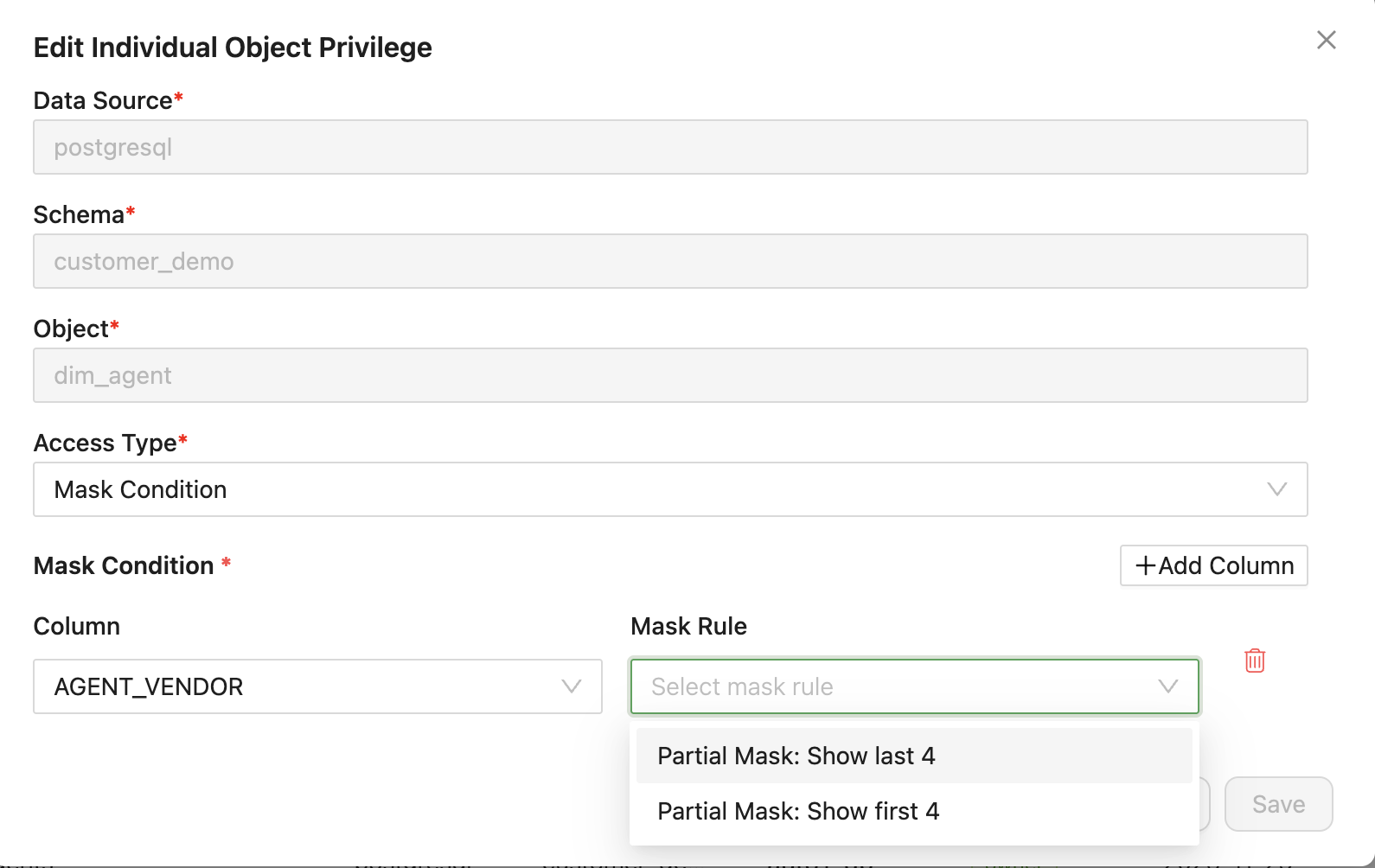
- Navigate to Data Authorization (shield icon in the header)
- Select the Users or Roles tab
- Choose the user or role to configure
- Click + Add Individual Object Privilege or edit an existing object privilege
- In the Mask Condition section, click + Add Column
- Select the column to mask from the dropdown
- Choose the Mask Rule
- Click Save
Using Row Filters and Column Masking Together
Row and column restrictions can be combined on the same object. When both are configured, row filters limit which records a user can see, and column masking controls which values within those records are visible. Both are applied automatically at query time.
Managing Data Authorization
Assigning access

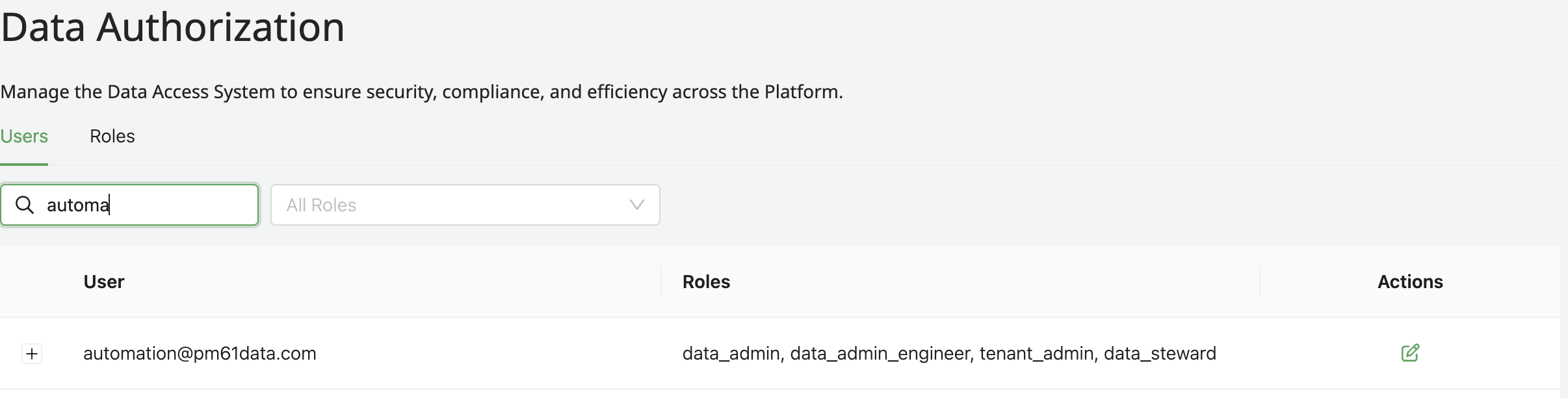
- Navigate to Data Authorization (shield icon in the header)
- Select the Users or Roles tab
- Choose the user or role to configure
- Click the Edit button
- Click + Add Privilege
- Choose Domains to assign access to all objects in a domain, or Add Individual Object Privilege for a specific object
- Select the domain or object, choose an Access Type (Viewer, Editor, or Owner), and save
Removing access
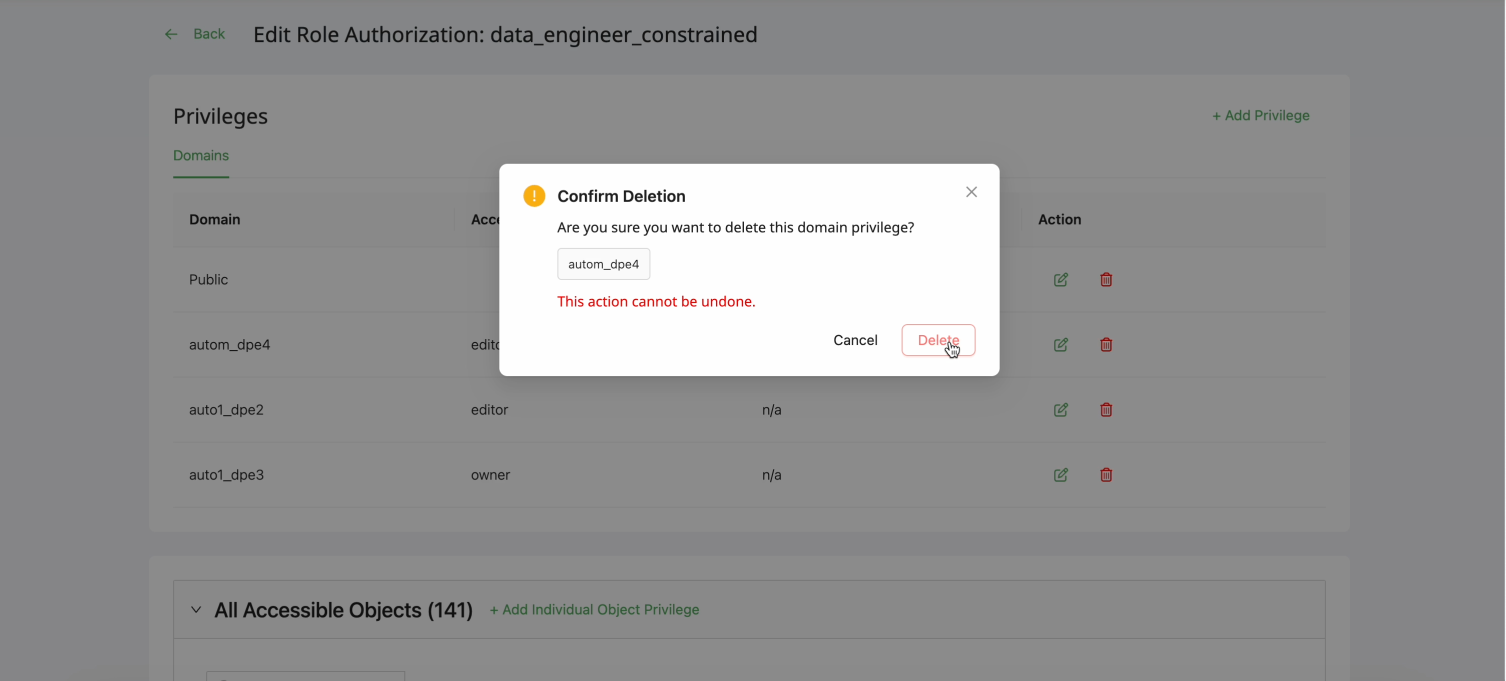
- Navigate to Data Authorization
- Select the Users or Roles tab
- Choose the user or role to modify
- Find the privilege to remove and click the Delete (trash) icon
- Confirm in the dialog
The All Accessible Objects count updates immediately.
Viewing who has access to an object
To see all users and roles that have access to a specific object, open the object and navigate to its Access Control tab.
Troubleshooting
User cannot access an object
- Check the module permission — Does the user's permission set include the relevant access gate (e.g.,
access_data_explorer_functionality,access_datamap_functionality)? Without it, the section is not visible. - Check Data Authorization — Does the user have at least Viewer access on the object, its parent datamap, or the domain the object belongs to?
- Table not yet indexed — If the table was recently added and has not been indexed, the user may need
create_datamapto query it until indexing completes.
User has access but should not
- Check for direct object grants on the object's Access Control tab
- Review the user's role assignments and any domain-level grants those roles carry
- Verify the object's domain assignment
- Review recent permission changes in the audit logs
Row filter not applied
- Verify the filter is assigned — Confirm the row filter is attached to the correct user or role in the Data Authorization interface.
- Check owner status — Object owners bypass row filters and always see all rows.
- Validate filter syntax — Test the SQL
WHEREclause expression against the table's column names independently.
Column masking not applied
- Verify the mask is assigned — Confirm the masking rule is assigned to the correct user or role and the correct column.
- Check owner status — Object owners may bypass masking configurations.
For information on module-level and action permissions, see UI Permissions and Permission Sets.