Users
Users represent individuals or systems who access the Promethium platform. User management includes assigning roles, and controlling access to data through direct domain assignments.
User Access Model
A Promethium user's access is determined by the permissions from one or more roles that the user is assigned to.
Viewing Users
Any user with access_tenant_management_functionality can view the users list. No additional permission is required.
The Users section in Tenant Management provides a comprehensive directory of all user accounts in your tenant.
Table Columns:
- User Email - User's email address (also serves as username)
- Roles - Assigned roles displayed as tags
- Actions - Edit and Delete buttons for each user
Special User Indicators:
- User icon - Service user (API/application account with password authentication)
- Roles shown with multiple tags for users with multiple role assignments
Creating Local Users
Local users are typically used for system access as human access is optimally granted via SSO.
Prerequisites
- You must have the
manage_userpermission - User email must be valid and unique within the tenant
- At least one role must be assigned to the new user
User Types
Promethium supports two types of user accounts:
Human User
Human users who access Promethium through the web interface or API.
Authentication Methods:
- SSO Authentication (Recommended) - Users authenticate through your Identity Provider (IdP)
- Direct Authentication (Legacy) - Users authenticate with Promethium-managed credentials
Service User
Service users are non-human accounts for API integrations, automation scripts, and application-to-application communication.
Characteristics:
- Designed for programmatic access (REST API calls)
- Authenticate using email and password credentials
- Do not require SSO or identity provider integration
- Indicated by User icon in user list
- Password-based authentication for API requests
Creating a Service User:
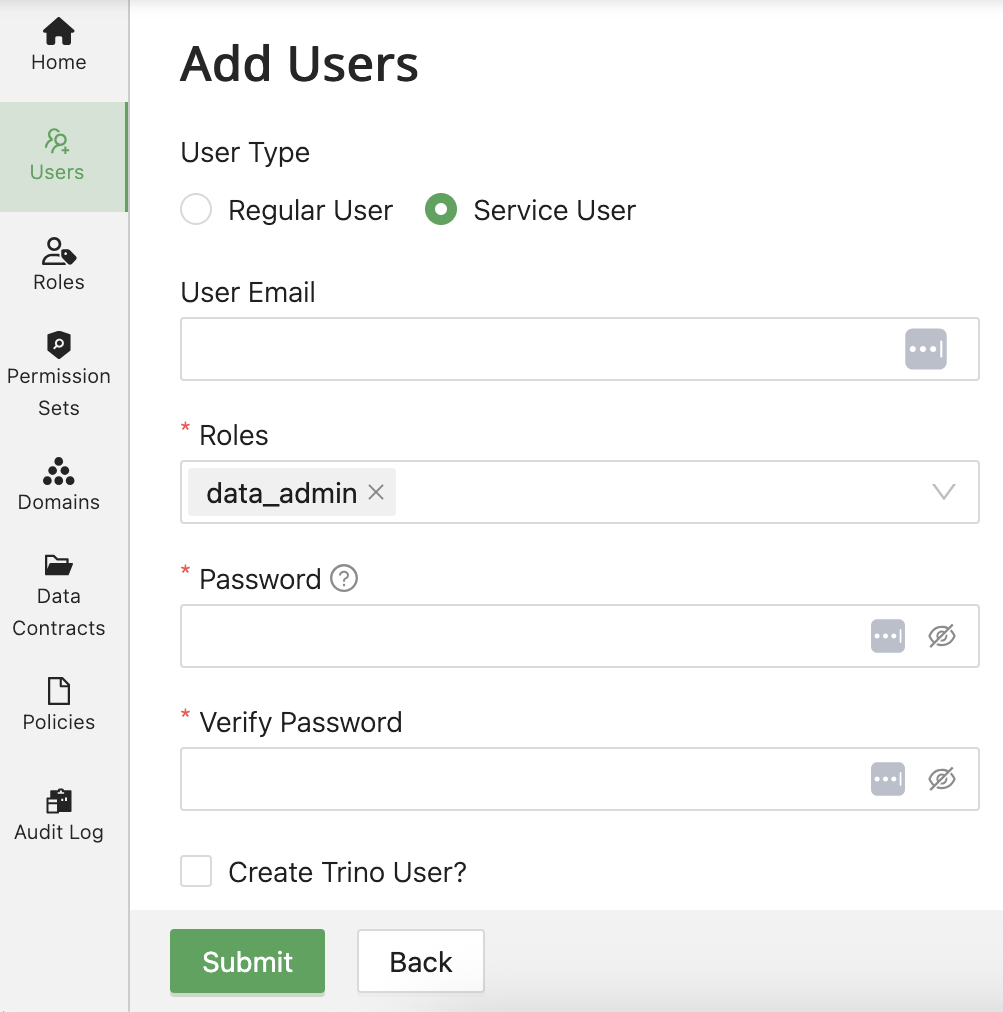
- Select Service User type
- Enter User Email (e.g.,
etl-service@yourcompany.com) - Enter Password (required for service users)
- Enter Verify Password
- Assign appropriate Roles (typically data_engineer or data_admin)
- Click Submit
Service User Best Practices:
- Use descriptive email addresses that indicate purpose (e.g.,
tableau-integration@company.com,airflow-etl@company.com) - Assign minimum required permissions (least privilege principle)
- Store credentials securely (use secret management tools like HashiCorp Vault, AWS Secrets Manager)
- Monitor service user activity through audit logs
- Create separate service users for different applications/purposes
- Document service user purpose and ownership
Editing Users
Modifying User Details
The Edit Users dialog provides access to modify:
User Information:
- User Email - Display only (cannot be changed)
- Email - User's email address (display only)
- Avatar - User profile image
Access Configuration:
- Roles - Multi-select tags showing assigned roles with (x) to remove
- Group - External identity provider group name (for IDP group mapping)
Group Field:
The Group field allows the assignment of a Promethium org group to a user, separate from roles, which help determine context relevant to different groups of Mantra users.
When a user is assigned to an IDP group, their role assignments are automatically synchronized based on the role's IDP Group configuration. See Roles - IDP Group Mapping for more details. This group input allows for assigning an org group separate from inbound IDP groups.
The user's email address (username) cannot be changed after creation. To change email, create a new user and migrate their permissions.
Effective Permissions: The user receives the union of all permissions from all assigned roles.
Deleting Users
User deletion is permanent and cannot be undone.
Deletion Steps
- Select the user to delete
- Click Delete button
- Confirm the deletion
Impact of Deletion
When a user is deleted:
- User account is permanently removed
- Owned objects are not deleted (tables, datamaps, answers remain)
- Access grants to the user's objects may need reassignment
- Audit log entries are preserved for compliance
Before deleting a user, reassign ownership of critical objects to Domain.
User Provisioning with SSO
When SSO is configured, user management works as follows:
First-Time Login:
- User authenticates through IdP.
- Promethium receives SAML assertion with user email and optional groups.
- If user doesn't exist, Promethium will automatically create the user account.
- Administrator assigns appropriate groups to roles.
Ongoing Authentication:
- Authentication - Handled entirely by your IdP
- Password Management - Managed by your IdP (not in Promethium)
- Role Assignment - Managed within Promethium by administrators
- Multi-Factor Authentication - Configured in your IdP
Benefits of SSO:
- Centralized identity management
- No separate Promethium passwords to manage
- Consistent authentication across enterprise applications
- MFA and conditional access policies enforced by IdP
- Simplified offboarding (disable once in IdP)
For detailed SSO setup instructions including specific examples for Entra ID and Okta, see Identity Provider Onboarding.
Troubleshooting
User Cannot Log In
Possible Causes:
- Password issue - Reset password or check IdP authentication
- Role not assigned - Ensure user has at least one role
User Cannot Access Expected Objects
Troubleshooting Steps:
- Verify user has the required Permission Set (check roles)
- Check if object is in a domain user has access to
- Confirm object-level permissions (direct or inherited)
- Review audit logs for access denial events
User Cannot Perform Specific Action
Check:
- Permission Set - Does user's role include the required permission?
- Object Ownership - Some actions require owner-level access
Best Practices
User Management
- Least Privilege - Assign minimum roles needed for user responsibilities
- Group Management - Use domains and roles instead of individual grants