Roles
A Role is a named collection of privileges. A privilege can be
- UI Privileges contained within a Permission Set(s)
- Data Access Privilege
Roles simplify access management by:
- Bundling permissions - Combine multiple Permission Sets into logical groups
- Simplifying assignment - Assign a single Role instead of individual privileges
- Enabling consistency - Ensure users with the same responsibilities have identical access
IDP Group Mapping
When using external identity providers (such as Okta, Entra ID, or other SAML/OIDC providers), Promethium supports automatic role assignment based on IDP group membership.
IDP Group Mapping only affects Human Users authenticating via SSO (when enabled for their specific External IDP configuration). Human Users using Direct Authentication and Service Users always use manual role assignments. For more details on user types, see User Types.
How IDP Group Mapping Works
IDP Group Mapping is configured per External IDP configuration within your tenant. This means each identity provider (Entra ID, Okta, etc.) can be independently configured to use Group Mapping or manual role assignment.
For External IDPs with Group Mapping Enabled:
- External Groups: SSO users belong to groups managed in that specific identity provider
- Group Claims: During SSO authentication, the IDP sends group membership information in the authentication token
- Role Mapping: Promethium roles can be configured with an IDP Group field that maps to external group names. Each IDP group can only be mapped to one role (one-to-one mapping)
- Automatic Assignment: When SSO users log in through that IDP, Promethium automatically assigns roles based on their IDP group membership
- Multiple Roles: SSO users who belong to multiple IDP groups will automatically receive all corresponding roles in Promethium
For External IDPs with Group Mapping Disabled (i.e. not configured):
- SSO users authenticating through that IDP work like Regular users or Service users
- Manual role assignment is used
- No automatic group-based role assignment occurs
- Roles must be managed directly in Promethium's Tenant Management
Example Scenario:
- Tenant has both Entra ID and Okta configured
- Entra ID has Group Mapping enabled → users from Entra ID get automatic role assignment
- Okta has Group Mapping disabled → users from Okta use manual role assignment
- Both can coexist in the same tenant
IDP Group Mapping is configured per tenant per External IDP configuration. This means:
- Multiple IDP Support: Promethium can have multiple External IDP configurations (e.g., Entra ID, Okta, etc.)
- Independent Configuration: Each External IDP can be configured with or without Group Mapping enabled
- Mixed Mode Support: Within the same tenant, some IDPs can use Group Mapping while others use manual role assignment
How Users Are Affected:
-
SSO Users (IDP with Group Mapping Enabled):
- Automatic role assignment based on IDP group membership
- Existing manual role assignments will be revoked on next login
- Access must be managed through IDP groups
-
SSO Users (IDP with Group Mapping Disabled):
- Manual role assignment (same as Regular users)
- Not affected by Group Mapping feature
- Roles managed directly in Promethium
Before enabling this feature for an External IDP:
- Ensure all SSO users authenticating through that specific IDP have been added to appropriate groups in the identity provider
- Verify all necessary groups are mapped to Promethium roles
- Test with a small group of SSO users from that IDP before full rollout
- Plan for user communication about the transition
After enabling for a specific IDP:
- Only SSO users authenticating through that IDP will be affected
- Their manual role assignments will be revoked on their next login
- SSO users from other IDPs (without Group Mapping enabled) will continue using manual role assignments
- Regular users and Service users are never affected
Benefits of IDP Group Mapping
- Flexible Configuration: Enable Group Mapping per External IDP configuration - use it for some IDPs while keeping others on manual assignment
- Automatic Provisioning: New users automatically receive appropriate roles based on their IDP group membership
- Centralized Management: Manage user access through your existing identity provider
- Reduced Administration: No need to manually assign roles in Promethium for IDPs with Group Mapping enabled
- Consistency: Ensures users in the same IDP group have identical Promethium access
- Real-time Updates: Role assignments update when users log in after IDP group changes
- Flexible Access: Users can receive multiple roles by being members of multiple IDP groups
- Automatic Revocation: Removing users from IDP groups automatically revokes their associated roles at next login
- Mixed Mode Support: Within the same tenant, different IDPs can use different assignment methods
Configuring IDP Group Mapping
When creating or editing a role:
- Navigate to Tenant Management > Roles
- Click Create Role or select an existing role and click Edit
- In the Role Name field, enter the role name
- In the IDP Group dropdown (optional), select an external identity provider group from the list
- Select Permission Sets to include in the role
- Click Save
IDP Group Dropdown:
- Shows all available groups from your configured identity provider that Promethium has discovered
- Group Discovery: Promethium only knows about groups after at least one user with that group has logged in
- If you don't see a group in the dropdown, have a user who is a member of that group log into Promethium first
- Groups already mapped to other roles appear greyed out and cannot be selected
- Each IDP group can only be mapped to one role (one-to-one mapping)
- Leave unselected for roles that are manually assigned
To assign multiple roles to an SSO user via IDP group mapping, add the user to multiple groups in your identity provider. Each group should be mapped to a different role in Promethium. The user will automatically receive all roles associated with their group memberships.
IDP Group Name Processing:
Promethium automatically processes group names received from identity providers:
- Lowercase Conversion: All group names are converted to lowercase (e.g.,
DataEngineersbecomesdataengineers) - Space Replacement: Spaces in group names are replaced with underscores (e.g.,
Data Engineersbecomesdata_engineers) - Special Characters: Only underscores (
_) and hyphens (-) are recommended in group names. Other special characters may cause issues
When creating groups in your identity provider (Entra ID, Okta, etc.), use lowercase letters with underscores or hyphens as separators (e.g., data_engineer, business-user) to ensure consistent mapping.
Important Considerations
New IDP Group Discovery
Promethium only learns about IDP groups when a user with that group logs in.
When you create a new group in your identity provider (Entra ID, Okta, etc.):
Step 1: Group Creation
- New group is created in your IDP and users are added to it
- Promethium has NO knowledge of this group yet
- The group will NOT appear in the IDP Group dropdown when creating/editing roles
Step 2: First User Login (Group Discovery)
- A user who is a member of the new group logs into Promethium
- Promethium receives the group information in the authentication token
- Promethium discovers and registers the new group
- The user will NOT get automatic role assignment yet because the group is not mapped to any role
Step 3: Map the Group to a Role
- After the first login, the new group becomes available in the IDP Group dropdown
- Administrator maps the group to a Promethium role (via Create/Edit Role)
- The group-to-role mapping is now configured
Step 4: Subsequent Logins (Role Assignment)
- Users with this group log out and log back in
- Promethium now automatically assigns the mapped role to these users
Recommended Workflow:
- Create the group in your IDP and add users
- Have one test user from that group log into Promethium (they may not get access initially)
- Immediately map the newly discovered group to the appropriate Promethium role
- Have users log out and log back in to receive their roles
- Communicate to users that they may need to log in twice after new group setup
Key Takeaway: There's a two-step discovery process - first login discovers the group, subsequent logins after mapping assign the roles.
IDP Group Renaming
Renaming groups in your external identity provider (Entra ID, Okta, etc.) breaks the connection to Promethium roles.
What Happens When You Rename an IDP Group:
- Treated as New Group: Promethium treats the renamed group as a completely new group
- Old Mapping Lost: The existing role mapping to the old group name remains, but no users will match it anymore
- Access Loss: Users lose access to the role until the new group name is mapped
- Manual Remapping Required: You must manually update the role's IDP Group field with the new group name
Example:
- Original IDP group:
data_engineers→ mapped to "Data Engineer" role - Renamed in IDP to:
data_engineering_team - Result: Role still shows
data_engineersmapping, but users now havedata_engineering_teamgroup → no match → access lost - Fix: Edit the role and change IDP Group from
data_engineerstodata_engineering_team
Best Practice: Avoid renaming IDP groups after they are mapped to Promethium roles. If you must rename:
- Document the current group-to-role mappings
- Rename the group in your IDP
- Immediately update all affected role mappings in Promethium
- Notify users they may need to log out and back in
- Verify access for affected users
Revoking Access via IDP Group Removal
To revoke an SSO user's access to roles managed through IDP group mapping:
- Remove the user from the group in your identity provider (Entra ID, Okta, etc.)
- Access is automatically revoked when the user logs in next time to Promethium
- No manual intervention required in Promethium
Access revocation takes effect at the user's next login. The user will retain their current roles until their authentication token expires and they log in again.
Enabling IDP Group Mapping
IDP Group Mapping is configured per External IDP configuration within your tenant. This allows you to enable it for specific identity providers while keeping others using manual role assignment.
Complete these steps BEFORE enabling IDP Group Mapping for a specific External IDP to prevent SSO user access disruptions:
Step 1: Audit Current SSO Users for That IDP
- Document all SSO users authenticating through the specific IDP (e.g., Entra ID or Okta) with manual role assignments in Promethium
- List their current roles and permissions
Step 2: Prepare the Specific Identity Provider
- Create all necessary groups in the IDP you're enabling Group Mapping for
- Follow naming conventions: lowercase, use underscores instead of spaces, avoid special characters except
_and- - Add all SSO users (who authenticate through that IDP) to their appropriate groups based on their required roles
Step 3: Configure Role Mappings
- Map each IDP group to the corresponding Promethium role
- Verify one-to-one group-to-role mappings are correct
- Ensure SSO users needing multiple roles are in multiple groups
Step 4: Validate
- Double-check that every SSO user (authenticating through that IDP) is in at least one IDP group (if they need access)
- Confirm group names match Promethium's processing rules (lowercase, underscores for spaces)
- Test with a pilot group before full rollout
Step 5: Communicate
- Notify SSO users (who authenticate through that specific IDP) about the upcoming change
- Inform them that they must log out and back in after enablement
- Prepare support team for potential access issues
After Enablement for That IDP:
- Only SSO users authenticating through that specific IDP will be affected
- Their existing manual role assignments will be revoked on their next login
- Only IDP group-based role assignments will be active for those SSO users
- SSO users from other IDPs (without Group Mapping enabled), Regular users, and Service users will continue to use manual role assignments
Flexible Configuration:
- You can enable Group Mapping for one IDP (e.g., Entra ID) while keeping it disabled for another (e.g., Okta)
- This allows gradual rollout and testing per identity provider
- Each IDP configuration is independent
To enable IDP Group Mapping for a specific External IDP:
Contact your Promethium administrator or support team to enable this feature for the desired External IDP configuration within your tenant.
Default Roles
During tenant onboarding, Promethium creates several example Roles with pre-configured Permission Sets:
Tenant Administrator
Permission Sets: Tenant Admin
Responsibilities:
- Manage tenant users, roles, and permission sets
- View audit logs and monitor system activity
Typical Users: IT administrators, system owners
Data Administrator
Permission Sets: Data Admin
Responsibilities:
- Full data platform administration
- Data source and domain management
- Approve and publish marketplace content
Typical Users: Data platform owners, chief data officers
Data Engineer
Permission Sets: Data Engineer
Responsibilities:
- Create and maintain datamaps
- Build data pipelines and transformations
- Configure data sources
- Manage table metadata and endorsements
Typical Users: Data engineers, analytics engineers
Business User
Permission Sets: Business User
Responsibilities:
- Explore and query data
- View reports and dashboards
- Access marketplace content
- Create basic analytical queries
Typical Users: Business analysts, report consumers
Role Management
Viewing Roles
Any user with access_tenant_management_functionality can view the roles list. No additional permission is required.
The Roles section displays all configured roles in a table format:
Table Columns:
- Role - Role name with expand/collapse arrow
- IDP Group - External identity provider group name (if configured)
- Permission Sets - Number of permission sets in the role
- Users - Number of users assigned to the role
- Actions - Edit and Delete buttons for each role
Role Details:
Click the arrow next to a role name to expand and view:
- List of assigned permission sets
- User assignments
- IDP group mapping (if configured)
Creating a Role
The Create Role dialog includes:
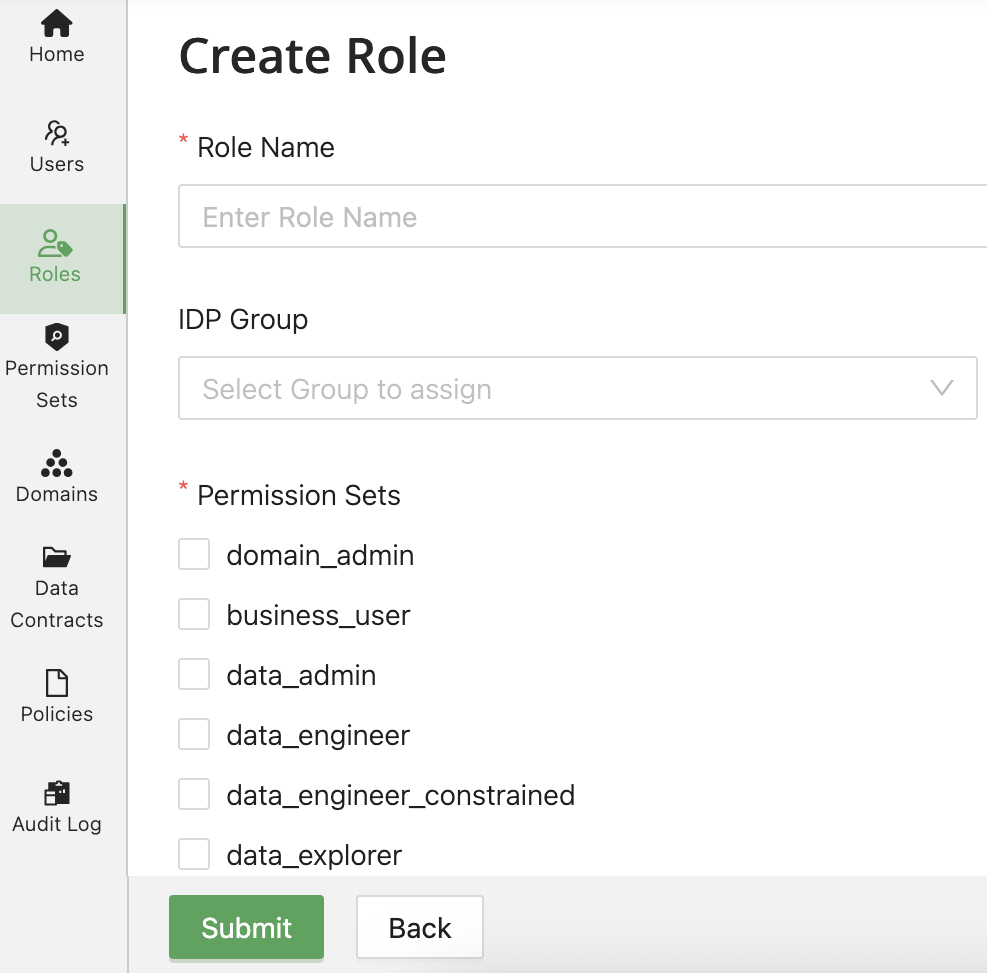
Required Fields:
- Role Name - Unique identifier for the role (must be unique within tenant)
Optional Fields:
- IDP Group - Dropdown menu to select an external identity provider group for automatic role assignment (each group can only be mapped to one role; already-mapped groups appear greyed out)
Permission Sets:
- Searchable list of all available permission sets
- Select one or more permission sets to include in the role
Roles become effective immediately upon creation and can be assigned to users right away.
Editing a Role
The Edit Role dialog allows modification of:
Editable Fields:
- Role Name - Update the role identifier (must remain unique)
- IDP Group - Select, modify, or clear the external identity provider group mapping from the dropdown
- Permission Sets - Add or remove permission sets from the role
UI Structure:
- Same interface as Create Role
- Shows current permission set selections
- Displays current IDP Group selection (if set)
Changes to role definitions affect all users currently assigned to that role.
Changes to a Role affect all users assigned to that Role immediately. For IDP group-mapped roles, changes take effect at the user's next login.
Deleting a Role
- Select the Role to delete
- Click Delete button
- Confirm the deletion
You cannot delete a Role that is currently assigned to users. Remove the Role from all users first, or reassign users to different Roles.
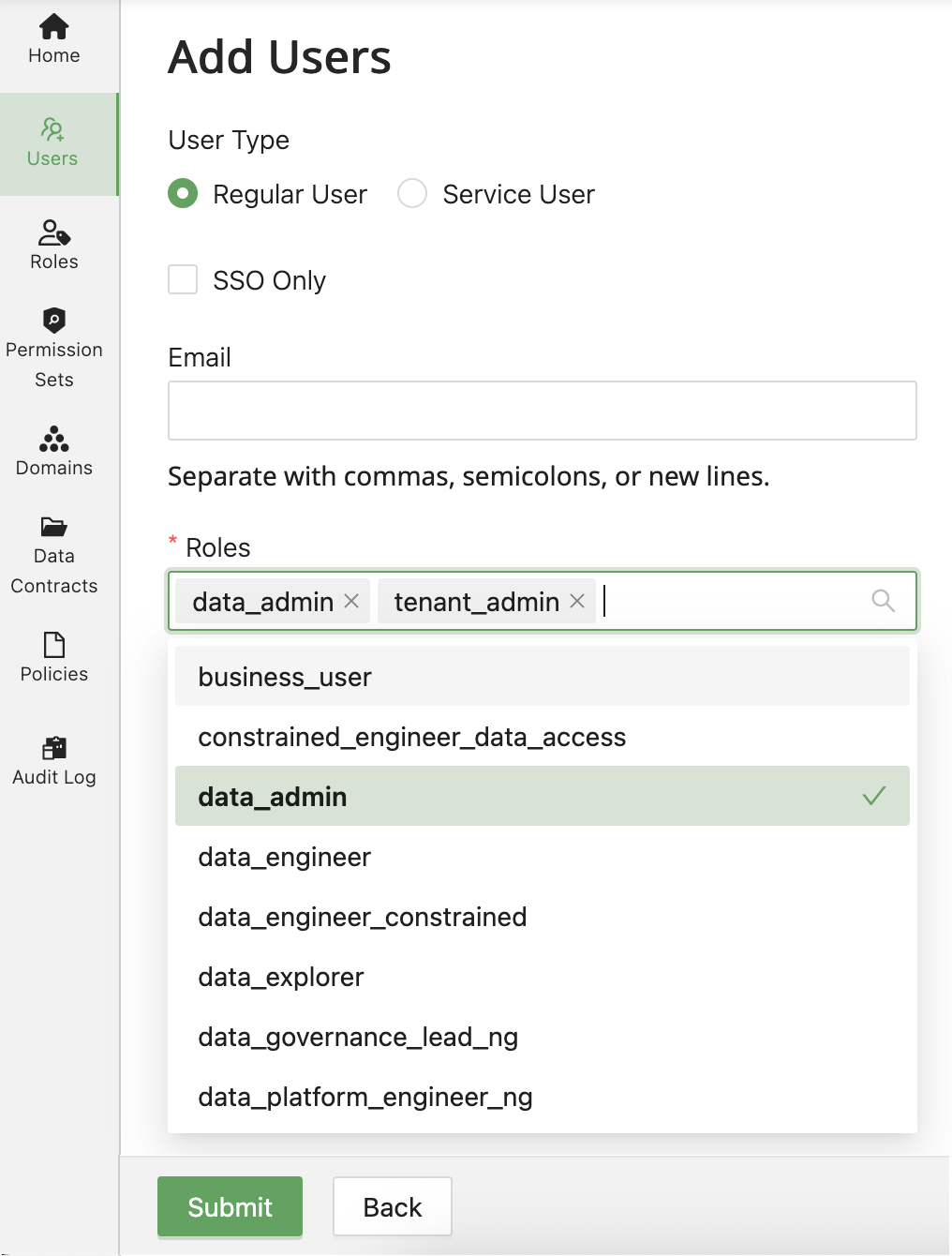
Assigning Roles to Users
Roles are assigned to users during user creation or can be modified later:
Troubleshooting
Users Lost Access After Enabling IDP Group Mapping
If users cannot access Promethium after IDP Group Mapping is enabled:
Immediate Actions:
- Verify the user is a member of at least one group in your identity provider
- Check that the user's groups are mapped to Promethium roles
- Confirm group names follow Promethium's processing rules:
- Lowercase conversion applied
- Spaces replaced with underscores
- Have the user log out completely and log back in
- Verify group claims are included in the authentication token
If user still cannot access:
- Temporarily add the user to an appropriate IDP group with necessary access
- Check identity provider logs to ensure group claims are being sent
- Contact Promethium support if the issue persists
If many users are affected, contact Promethium support about temporarily reverting to manual role assignment while you complete the group setup in your identity provider.
IDP Group Mapping Not Working
Check:
- Verify the group name in your identity provider matches the processed name in Promethium:
- Group names are converted to lowercase
- Spaces are replaced with underscores
- Example:
Data Engineersin IDP appears asdata_engineersin Promethium
- Ensure the group claim is being sent in the authentication token
- Verify the user is a member of the correct group in the identity provider
- Check that the group is not already mapped to another role
- Have the user log out and log back in to refresh their token
User Still Has Access After Group Removal
Check:
- Verify the user was actually removed from the group in your identity provider
- Confirm the user has logged out and back in to Promethium (access revocation occurs at next login)
- Check if the user has other group memberships that grant similar roles
- Verify if the role was also manually assigned to the user (not just via IDP group mapping)
- Check the authentication token expiration time in your IDP settings
For immediate access revocation:
- Manually remove the role from the user in Promethium's Tenant Management
- Invalidate the user's session in your identity provider
- Reduce token lifetime temporarily in IDP settings
User Cannot Access Expected Features
Check:
- Verify the user has the correct Role assigned
- Confirm the Role includes the necessary Permission Sets
- Check if object/Domain-level permissions are required
- Review audit logs for access denial details
Role Changes Not Taking Effect
Solutions:
- Have the user log out and log back in
- Verify role modifications were saved successfully
- Check if caching is causing delays (typically clears within minutes)
- Review application logs for permission resolution errors