Domains
Domains are logical groupings of data objects (tables, views, datamaps) that simplify permission management and enable efficient access grants across teams and users.
What are Domains?
A Domain is a collection of related data objects (tables, views, datamaps) that can have permissions assigned at the group level. Think of domains as folders or workspaces that:
- Group related objects - Organize tables, views, and datamaps by project, team, or subject area
- Simplify access grants - Grant access to multiple objects with a single permission assignment
- Inherit permissions - Objects automatically inherit access rules from their domain
- Enable collaboration - Teams can work together within authorized domains
Domain Benefits
- Simplified Permission Management - Grant access to many objects with a single assignment
- Automatic Permission Inheritance - New objects in a domain inherit existing permissions
- Flexible Access Control - Support for user-level and role-level assignments with hierarchical access
Default Domains
Every tenant is created with two default domains:
Private Domain
Purpose: Personal workspace for individual users
Characteristics:
- Each user has their own private domain
- Only the owning user has access by default
- Objects created here are not visible to others unless access is explicitly granted
Use Cases:
- Exploratory analysis
- Work-in-progress datamaps
- Personal queries and reports
- Sandbox development
Public Domain
Purpose: Authorized workspace for tenant-wide collaboration
Characteristics:
- Accessible based on assigned permissions
- Centralized location for authorized resources
- Governed by role and user assignments
- Naming convention:
public
Use Cases:
- Published datamaps for organization-wide use
- Reference tables and datasets
- Approved reports and dashboards
- Certified data assets
Viewing Domains
Any user with access_tenant_management_functionality can view the domain list. No additional permission is required.
- Navigate to Tenant Management from the main menu
- Select Domain Management
The Domain Management interface displays a paginated, searchable table with the following structure:
- Domain name - Name with icon
- Description - Domain description
- Action - Available actions for each domain:
- + Add Subdomain - Create a subdomain under this domain
- Edit (pencil icon) - Modify domain properties
- Delete (trash icon) - Remove the domain
Creating Domains
Prerequisites
- You must have the
manage_domainpermission (included in Data Admin role) - Choose a descriptive, unique name for the domain
Creation Steps
The Edit Domain dialog includes:
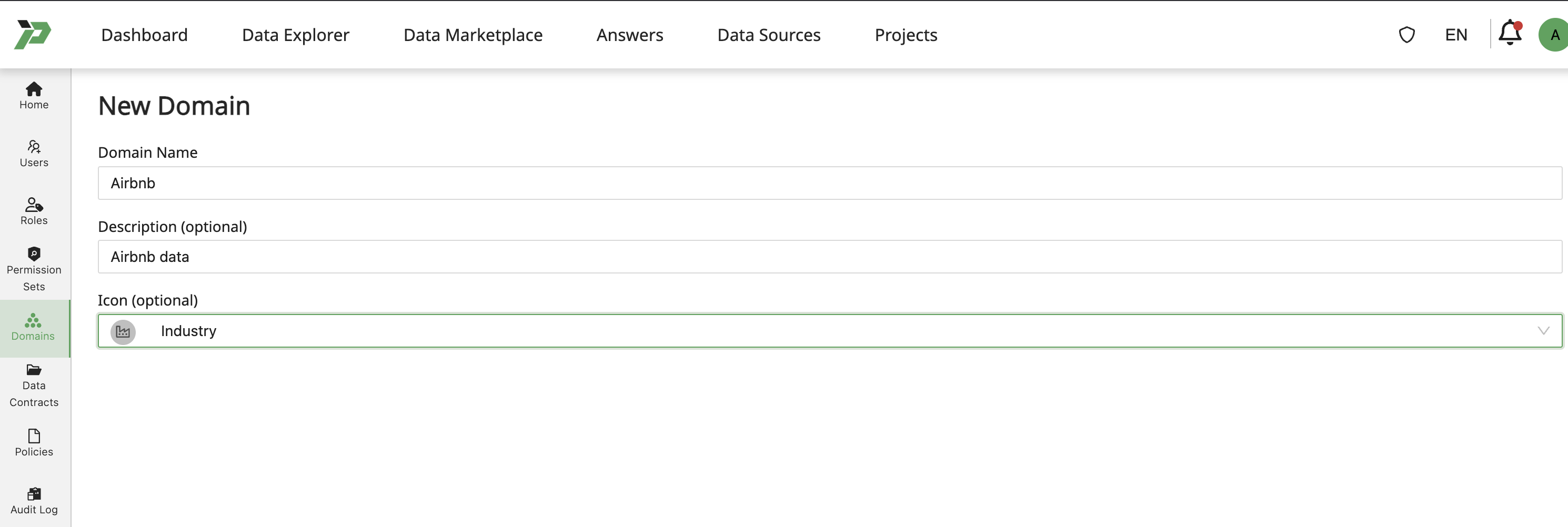
Domain Properties:
- Domain Name (required) - Unique identifier for the domain
- Description (optional) - Free-text area to document domain purpose
- Icon (optional) - Icon selector for visual identification
Access Configuration Tabs:
- Roles tab - Assign role-based access
- Users tab - Assign user-based access
Each access tab shows:
- Role/User name
- Type - Access level (Owner, Editor, Viewer)
New domains can be created with or without initial access assignments.
Example from UI:
Domain Name: Campaign Management
Description (optional): Campaign Management
Icon (optional): (selected icon)
Use clear, hierarchical names:
sales_regional_analysisfinance_quarterly_reportsproduct_customer_insights
Adding Objects to Domains
During Object Creation
When creating a datamap, table, or view:
- Complete the object definition
- In the Domain field, select the target domain
- Save the object
Default Behavior: If no domain is specified, the object is placed in your private domain.
For Existing Objects
Move an existing object to a domain:
Object Domain Assignment
Data objects (datamaps, tables, views) include a Domain property that determines access inheritance:
- Domain selector - Dropdown showing all domains where the user has Owner or Editor access
- Current domain - Displays the object's current domain assignment
- Access impact indicator - May show warnings if domain change will affect user access
When an object's domain is changed, its access permissions immediately update to reflect the new domain's access rules. Users lose access to the object unless they have permissions through the new domain.
Moving an object to a new domain changes its access permissions immediately. Users with access to the old domain lose access; users with access to the new domain gain access.
Domain Use Cases
Project-Based Domains
Organize data by project or initiative:
Domain: Customer360 Project
Objects: Customer tables, behavioral data, segmentation datamaps
Access: Project team members (Editor), Stakeholders (Viewer)
Team-Based Domains
Separate data by organizational team:
Domain: Sales Operations
Objects: Sales pipeline tables, quota reports, forecasting datamaps
Access: Sales Ops team (Editor), Sales leadership (Viewer)
Subject-Area Domains
Group data by business domain:
Domain: Financial Reporting
Objects: GL tables, P&L datamaps, budget vs. actual views
Access: Finance team (Editor), Executives (Viewer), Auditors (Viewer)
Environment Domains
Separate development and production data:
Domain: Development Sandbox
Objects: Test tables, experimental datamaps
Access: Data engineers (Owner), Analysts (Editor)

Domain: Production Certified
Objects: Approved datamaps, validated tables
Access: Data stewards (Owner), All users (Viewer)
Editing Domains
Modifying Domain Properties
Modifying Domains
The domain editing interface allows updates to:
- Name - Must remain unique within the tenant
- Description - Can be updated to reflect evolving domain purpose
- Tags - Can be added, modified, or removed for better organization
Domain metadata changes (name, description, tags) do not affect object assignments or user access—only the domain's identity and categorization are modified.
Changing a domain name does not affect object assignments or permissions, but update any documentation or references.
Reorganizing Objects
Move objects between domains as needed:
- Identify objects in the current domain
- Edit each object to change its domain assignment
- Verify permissions are correct in the new domain
Bulk Operations: For large reorganizations, consider using the API or contacting your administrator.
Deleting Domains
Deleting a domain does not delete the objects within it. Objects revert to the owner's private domain.
Deletion Steps
- Select the domain to delete
- Click Delete button
- Confirm the deletion
Impact of Deletion
When a domain is deleted:
- Domain record is permanently removed
- Objects are moved to their owner's private domain
- Access permissions from the domain are lost
- Users lose access unless they own the objects or have other permissions
Before deleting a domain, reassign its objects to appropriate alternative domains to maintain proper access control.
Domain Permissions Resolution
When accessing objects in a domain, permissions are resolved in priority order: (1) Direct object ownership, (2) Direct domain access, (3) Inherited domain access via roles. Users receive the highest access level from any source.
See Data Authorization for complete permission resolution details and examples.
Advanced Domain Features
Domain Discovery
Users can discover domains they have access to:
Domain Discovery in Data Explorer
The Data Explorer interface includes domain-based organization:
- Domain filter - Shows only domains where you have at least Viewer access
- Domain badges - Each object shows its domain affiliation as a visual indicator
- Object count per domain - Filter shows the number of accessible objects in each domain
Domain-based filtering helps users quickly navigate to relevant datasets and understand data organization within the tenant.
Best Practices
Domain Design
Plan domain structure
- Align with organizational structure and data governance
- Balance granularity (too many domains = complexity, too few = poor isolation)
- Consider future growth and reorganization
Use consistent naming
- Establish naming conventions early
- Include team/project/subject area in the name
- Avoid ambiguous or overlapping names
Document domain purpose
- Clear descriptions help users understand contents
- Specify data classification and compliance requirements
- List primary stakeholders or owners
Access Management
Follow least privilege
- Grant Viewer access by default
- Elevate to Editor only when needed
- Limit Owner access to data stewards and admins
Use role-based access
- Prefer role-domain assignments over user-domain assignments
- Reduces administrative overhead
- Ensures consistency for users with the same responsibilities
Regular access reviews
- Audit domain permissions quarterly
- Remove access for users who no longer need it
- Verify role assignments are still appropriate
Operational
Lifecycle management
- Archive or delete unused domains
- Migrate objects from deprecated domains
- Maintain clear production vs. development separation
Change control
- Document significant domain structure changes
- Communicate permission changes to affected users
- Test access changes before applying to production domains
Troubleshooting
User Cannot See Domain
Possible Causes:
- No access assigned - User not assigned directly or via role
- Incorrect access level - User might have access but it's not visible in certain views
- Domain not exists - Verify domain was created successfully
Object Not Accessible After Adding to Domain
Check:
- User has domain access - Verify user/role assignment to domain
- Sufficient access level - Viewer can only read, Editor can modify
- Application permissions - User needs both domain access AND appropriate Permission Set
- Object-level override - Object might have explicit access restrictions
Cannot Delete Domain
Reasons:
- You need
manage_domainpermission (included in Data Admin role) - System domains (Private, Public) cannot be deleted
- Check for references or dependencies